Immediate
Useful while setting up a new source or investigating a schedule. Receive confirmation as individual backups complete.
Reports & alerts
Understand what completed, choose how success emails arrive, and know what to investigate when a backup is missing or fails.
Start free trial
See what it does, who it’s for, and whether it fits your needs.
Opens with product context and a link to this page.
Daily overview or immediate updates
CalmBackup offers two success-notification preferences: an email after each confirmed backup or a daily digest that groups successful backups. New accounts default to the digest preference.
These messages report backup activity. They do not certify that a full application restore exercise has taken place. Use the recovery guide to establish that separate routine.
Useful while setting up a new source or investigating a schedule. Receive confirmation as individual backups complete.
Useful once the routine is established. Review successful activity together rather than receiving an email for every run.
02 / Reports & alerts
A timestamp without the right source is not useful reassurance. Use meaningful source names and labels so you can distinguish production, staging and separate applications.
| Signal | What it tells you | What to check next |
|---|---|---|
| Confirmed backup | The API accepted the client’s upload confirmation metadata. | Confirm the expected source, time and backup size. |
| Backup failed | A backup operation reported an error. | Read the error and check credentials, database tools, storage and network access. |
| Backup missed | Expected backup activity was not observed by the missed-backup detector. | Check that cron ran and the host was online. |
| Restore failed | A client restore reported an error. | Check the selected archive, encryption key, destination and database tools. |
03 / Reports & alerts
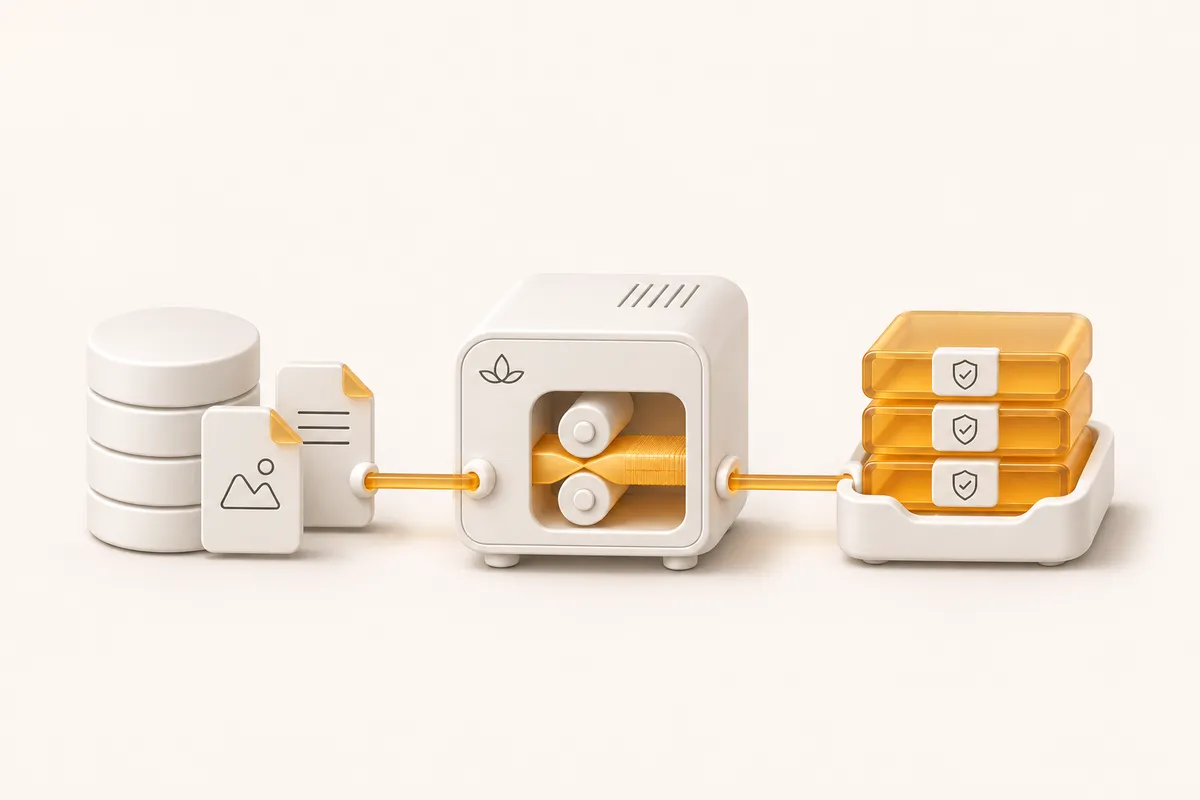
Confirm it is online, has free disk space and can reach the database and the upload destination.
Review the user running cron, the binary path and the configuration file it loads. A working interactive shell does not guarantee the same environment in cron.
Compare the error with the latest confirmed backup. Re-run the backup only after identifying whether the previous attempt finished or needs attention.
When the backup flow is healthy again, make sure your recovery exercise and key copy are still current.
A calmer place to start
Connect a source, keep your encryption key safe, and try a restore. Make the whole routine familiar before you need it.
Start your 14-day trial